Settings
Application Parameters
The Application Parameters menu includes configuration tabs for Data Subject Request Type, Consent Type, Privacy Law, Category, External System, and Request Statuses.
Data Subject Request Type Tab
The Data Subject Request Types tab lists each request type, its description, and the associated workflow.
To create a new data subject request type, click the + New button. Enter the Name and Description fields, select the Flow, and then click Create to save it.
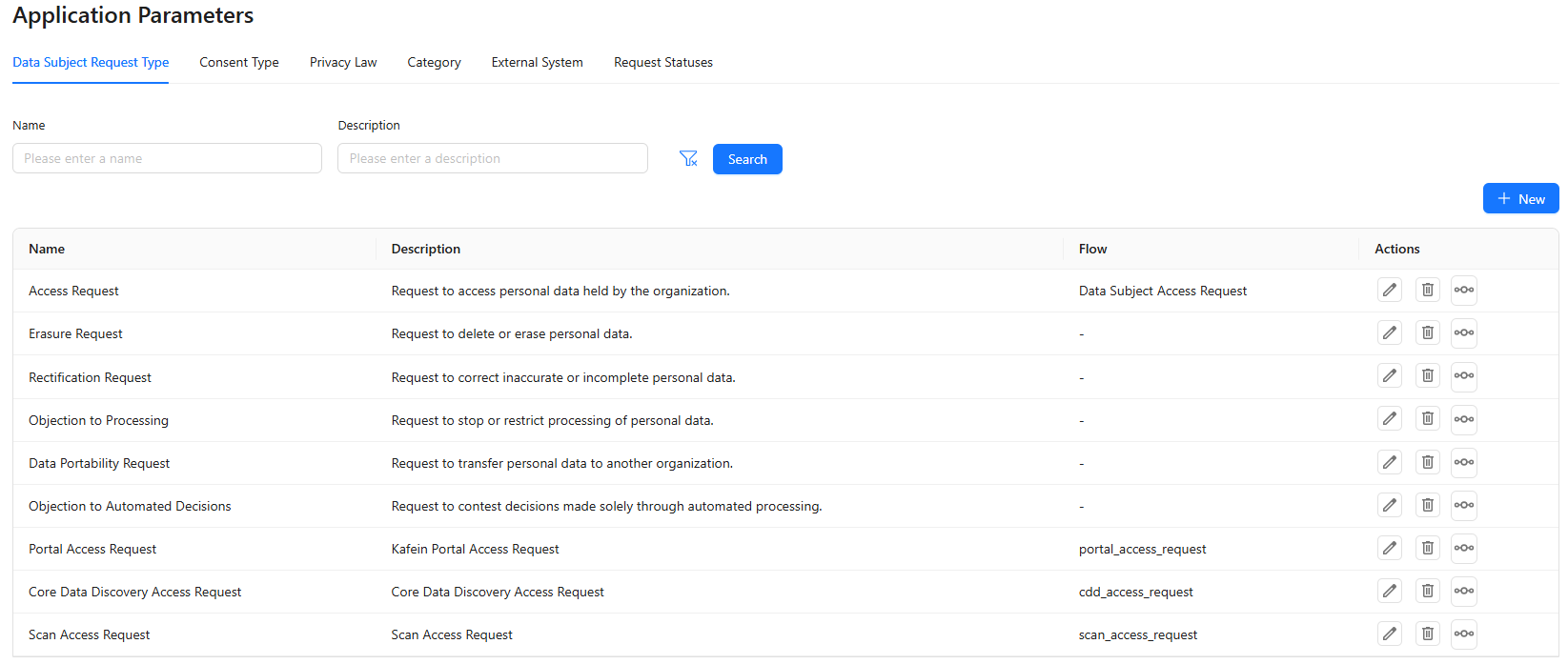
Edit and delete operations can be performed from the Actions section.
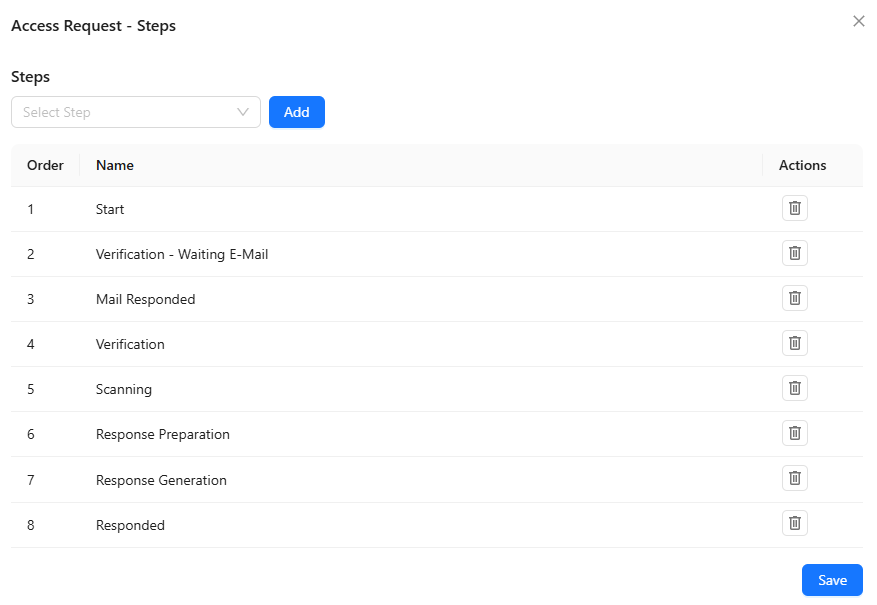
By clicking the Steps button under Actions, you can view and modify the steps that will apply to the Access Request process. You can add new steps or delete existing steps from this section.
Consent Type Tab
The Consent Types tab lists all consent types together with their Description and Code values. Existing consent types can be edited or deleted using the Actions section.
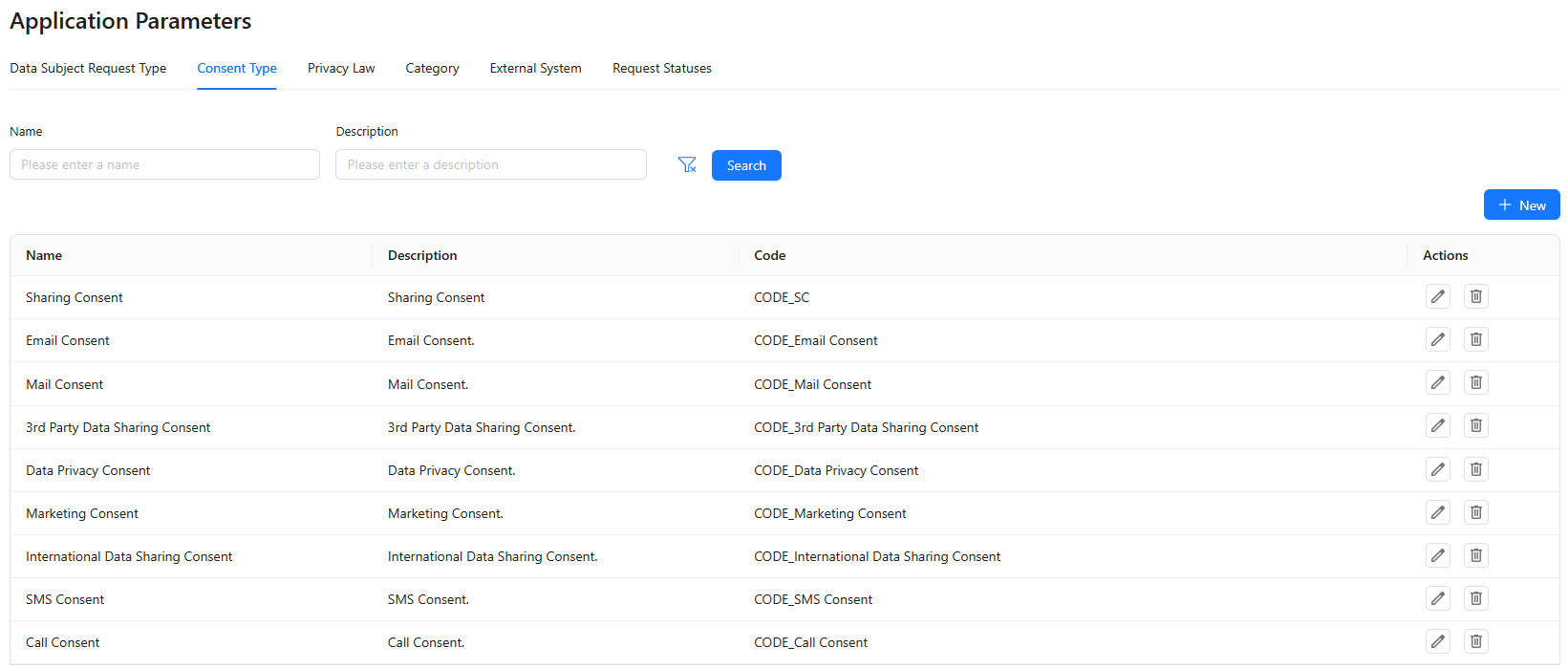
To create a new consent type, click + New, enter the Name, Description, and Code, and then click Create to save it.
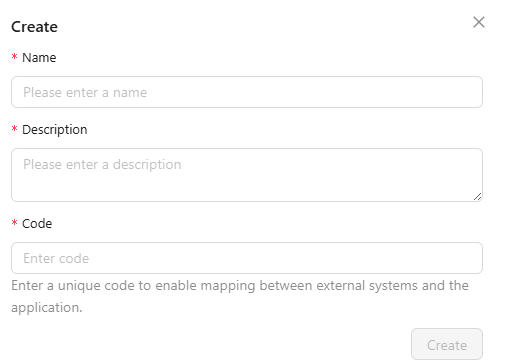
Privacy Law Tab
The Privacy Law tab lists all privacy laws together with their Consent Retention, Request Deadline, Documents, Last Updated By and Last Update Date information. Existing laws can be favorited, viewed or deleted using the Actions section.
Only one item can be marked as favorite. When a new favorite is selected, the previous one is automatically unfavorited.
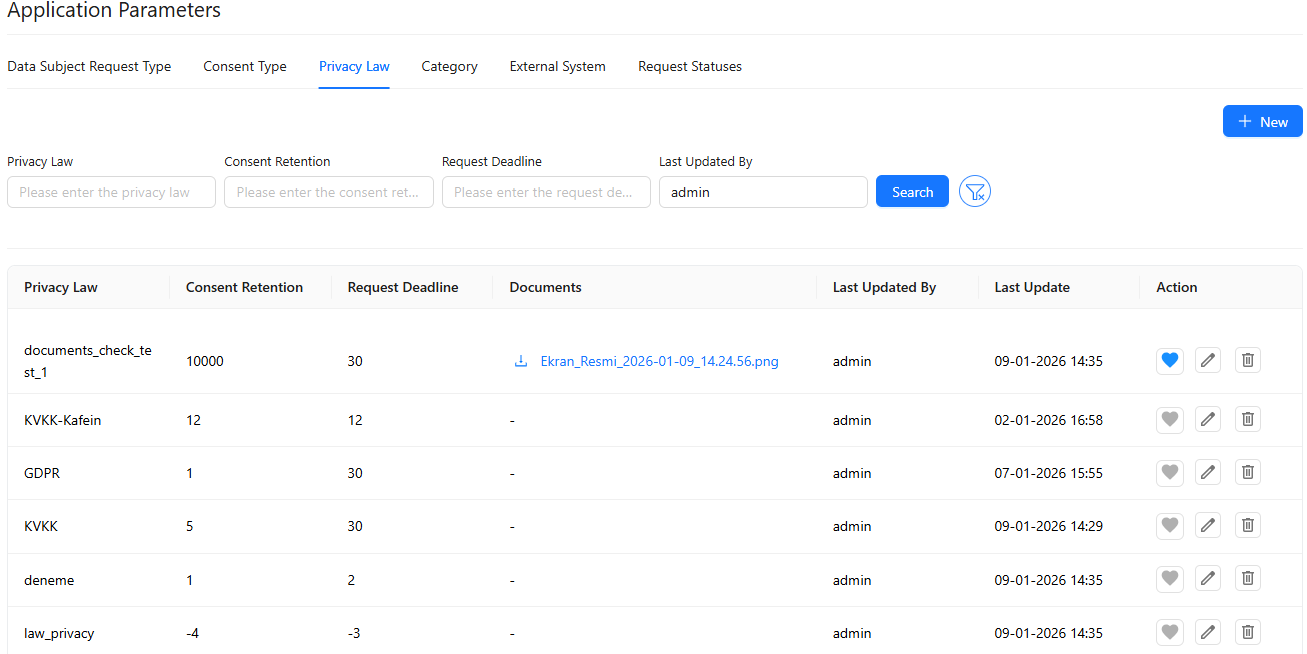
To create a new privacy law, click the + New button.
-
Enter the Privacy Law Name, Consent Retention (years), Marketing Communication (years), HR CV Retention (days), Data Subject Request Deadline (days), and Request Extension (days) information.
-
If needed, the International Data Sharing Consent and Third Party Data Sharing Consent options can be enabled.
-
In the Upload File section, choose the files you want to upload.
Finally, click Create to add the new privacy law.
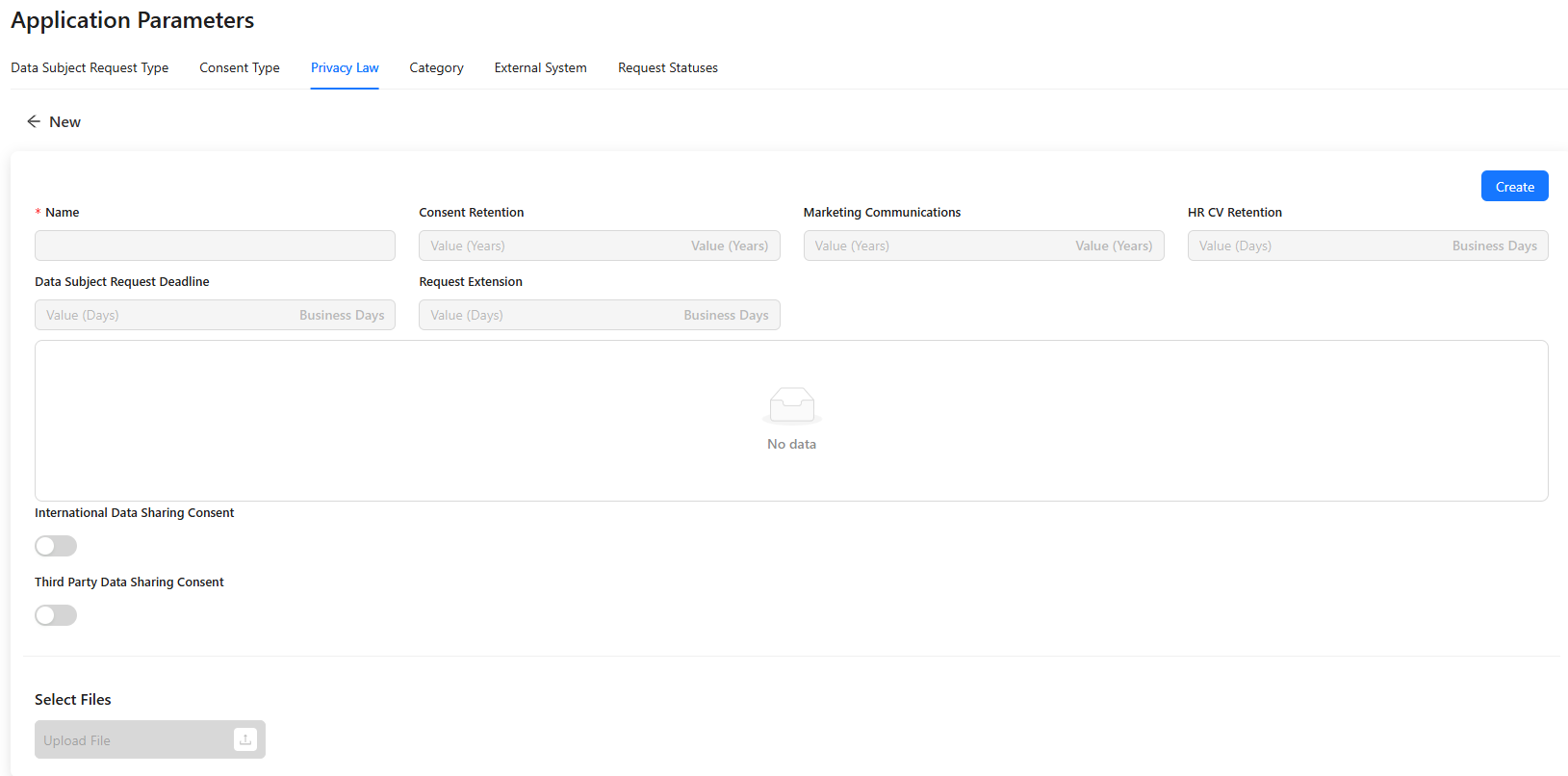
To edit the details of a privacy law, click the Edit button in the Action column. If any updates are required, they can be made on this page and saved by clicking Save.
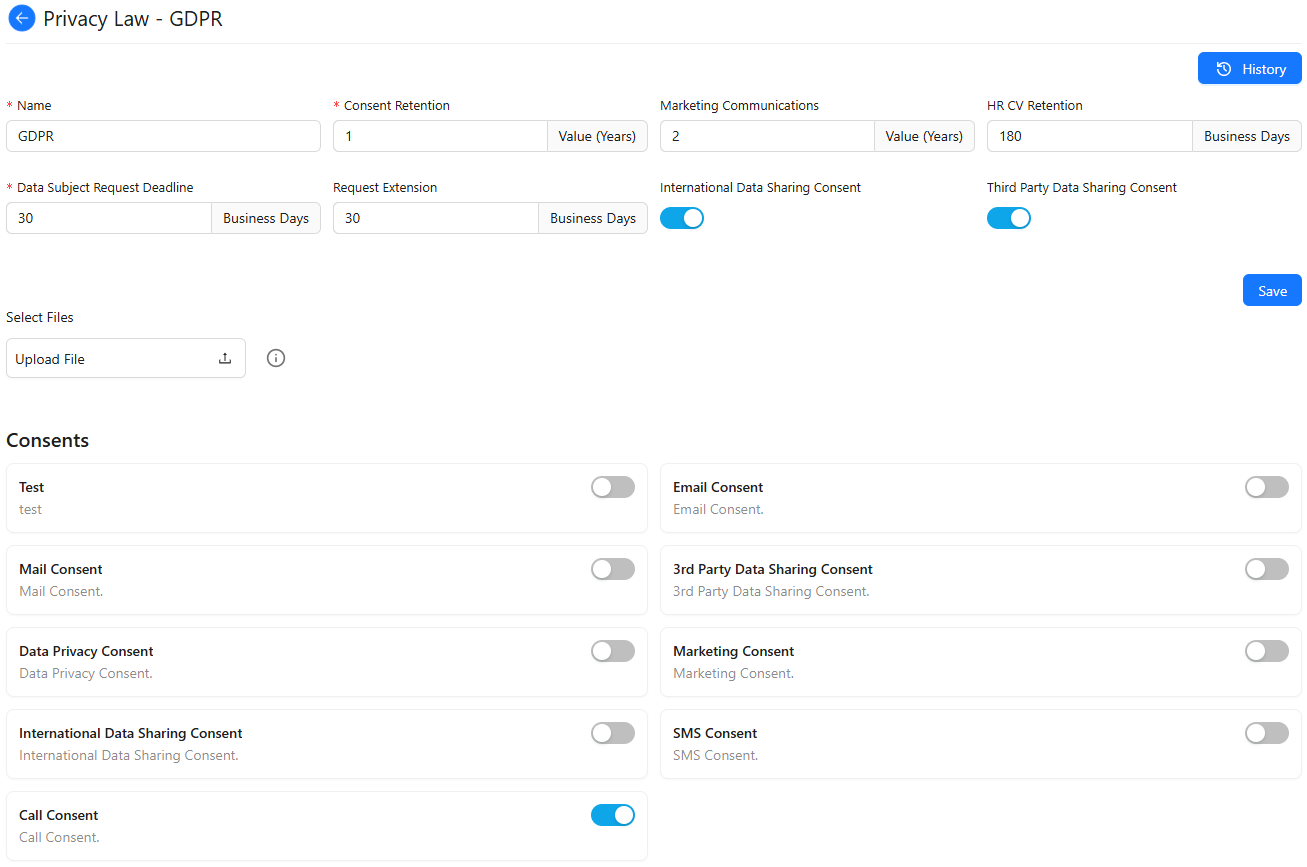
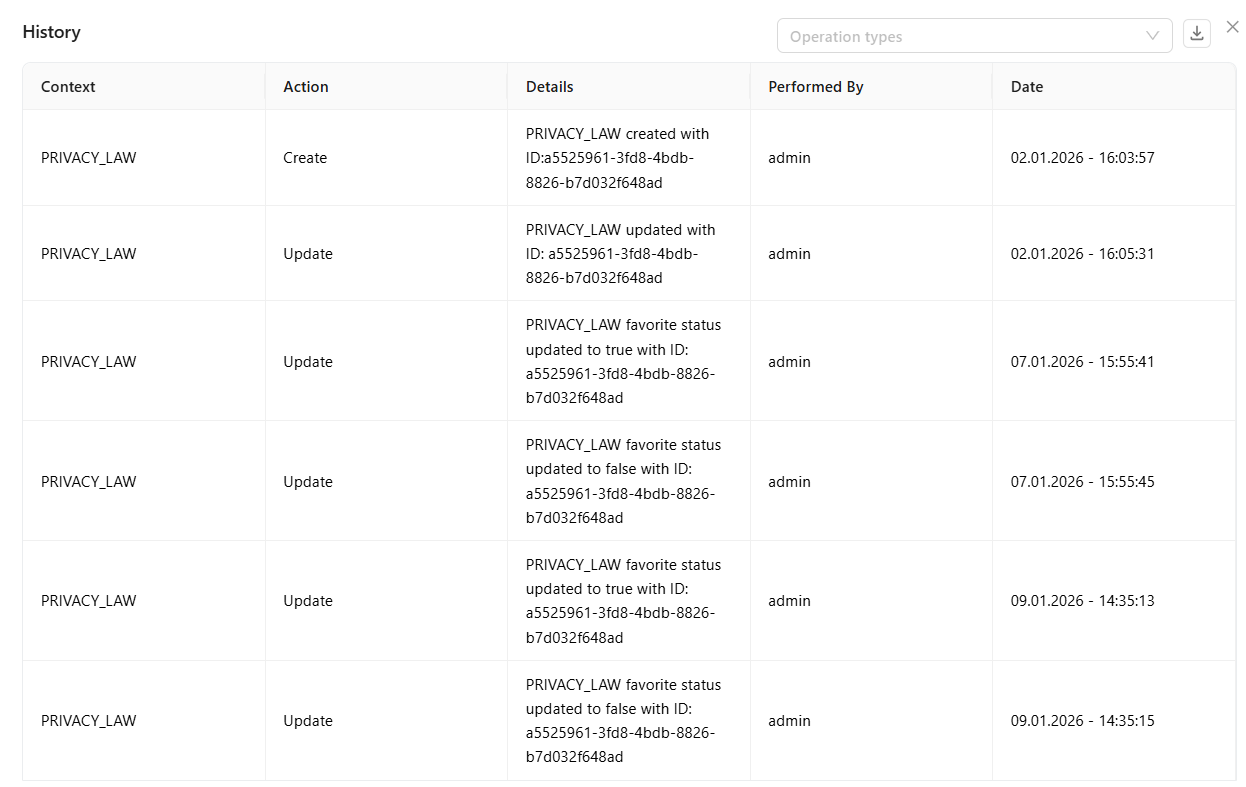
On the Privacy Law edit page, click the History button in the upper right corner to see a list of updates, including who made the change and the date with time. If you want to download the history, use the Download button.
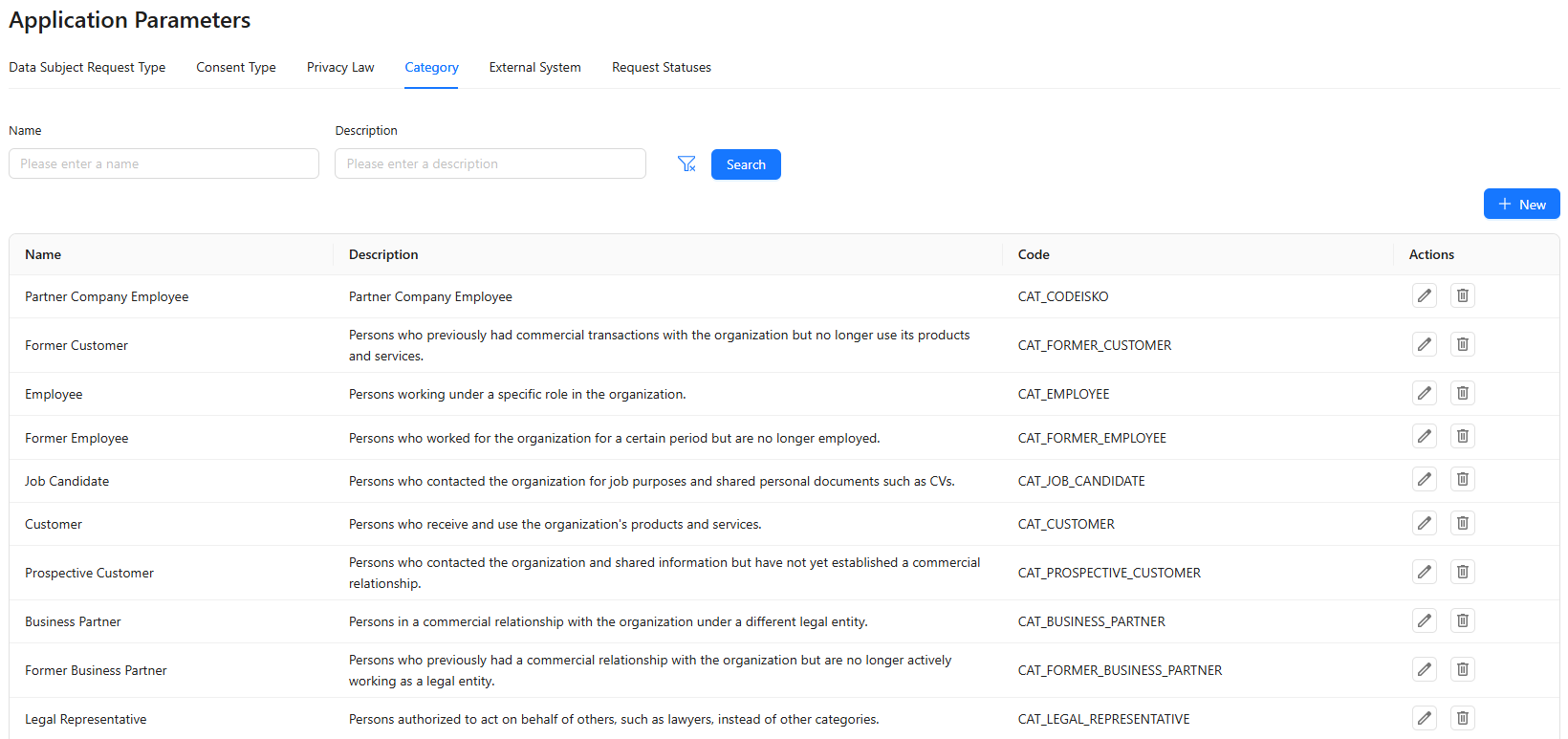
Category Tab
It provides a detailed list of existing categories and allows users to edit or delete them.
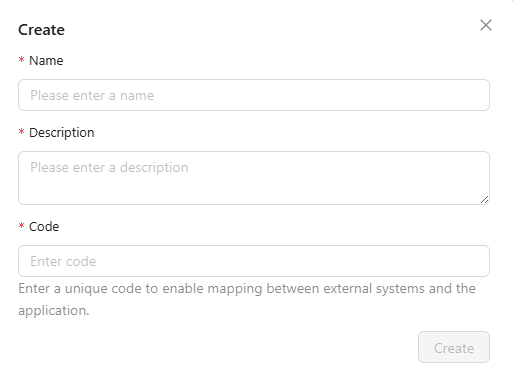
To create a new category, click + New. Enter the Name, Description, and Code (must be unique). Then click Create to add the new category.
External System Tab
It provides a detailed list of external systems and allows users to edit or delete them.
To create a new external system, click + New. Enter the ID, System Name, and Description, then click Create.

Request Statuses Tab
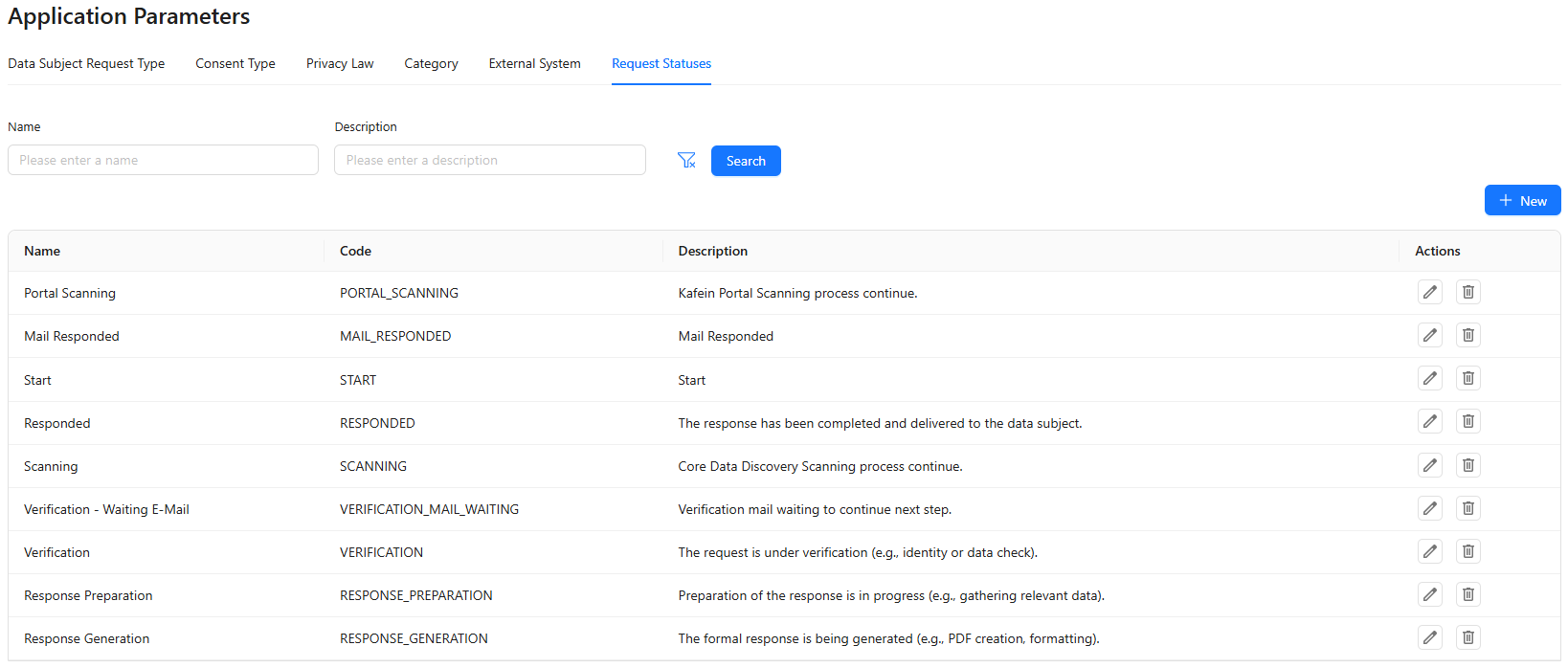
It provides a detailed list of request statuses and allows users to edit or delete them.
To create a new request statuses, click + New. Enter the Code, Name, and Description, then click Create.
System Parameters
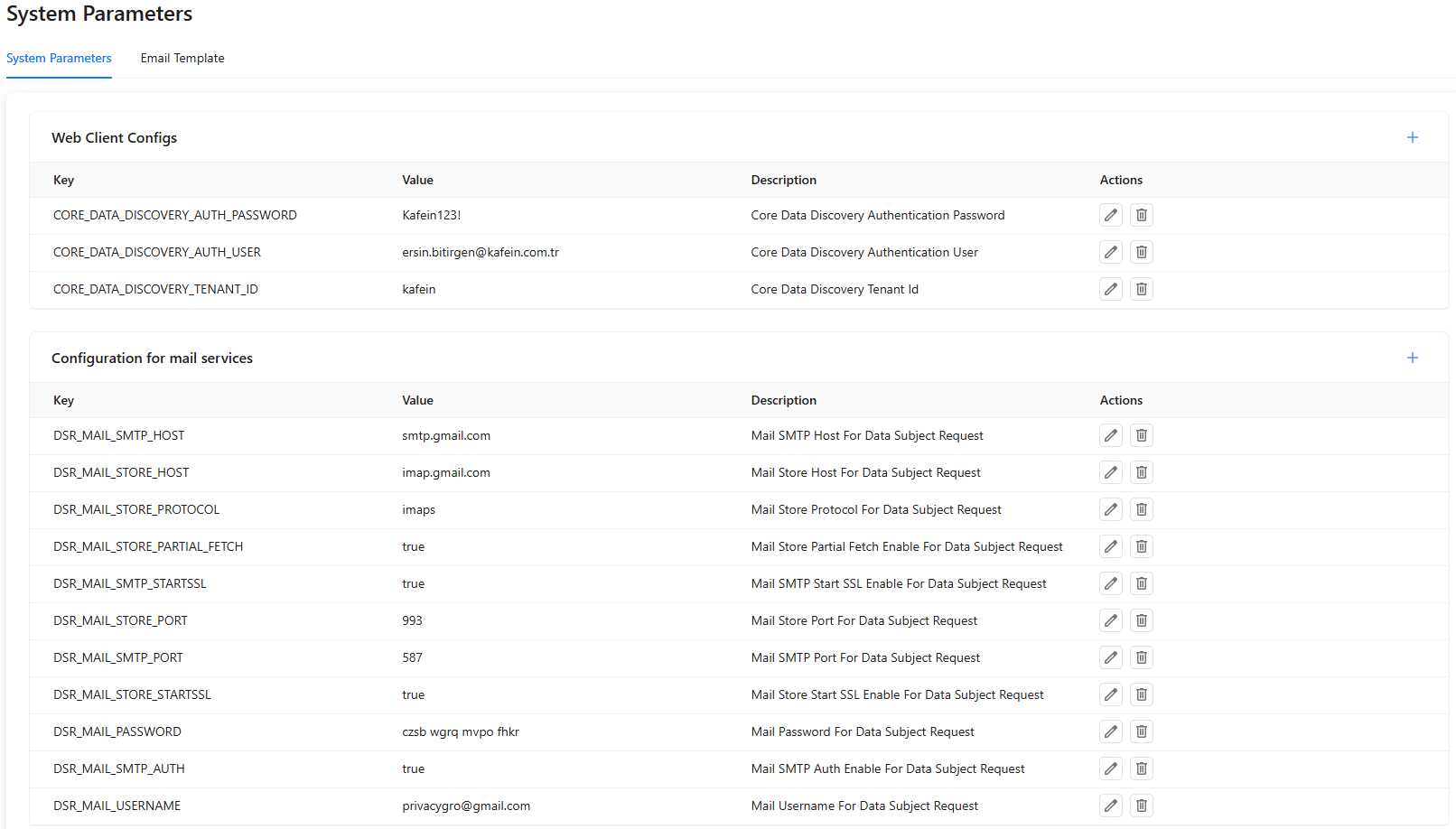
System Parameters Tab
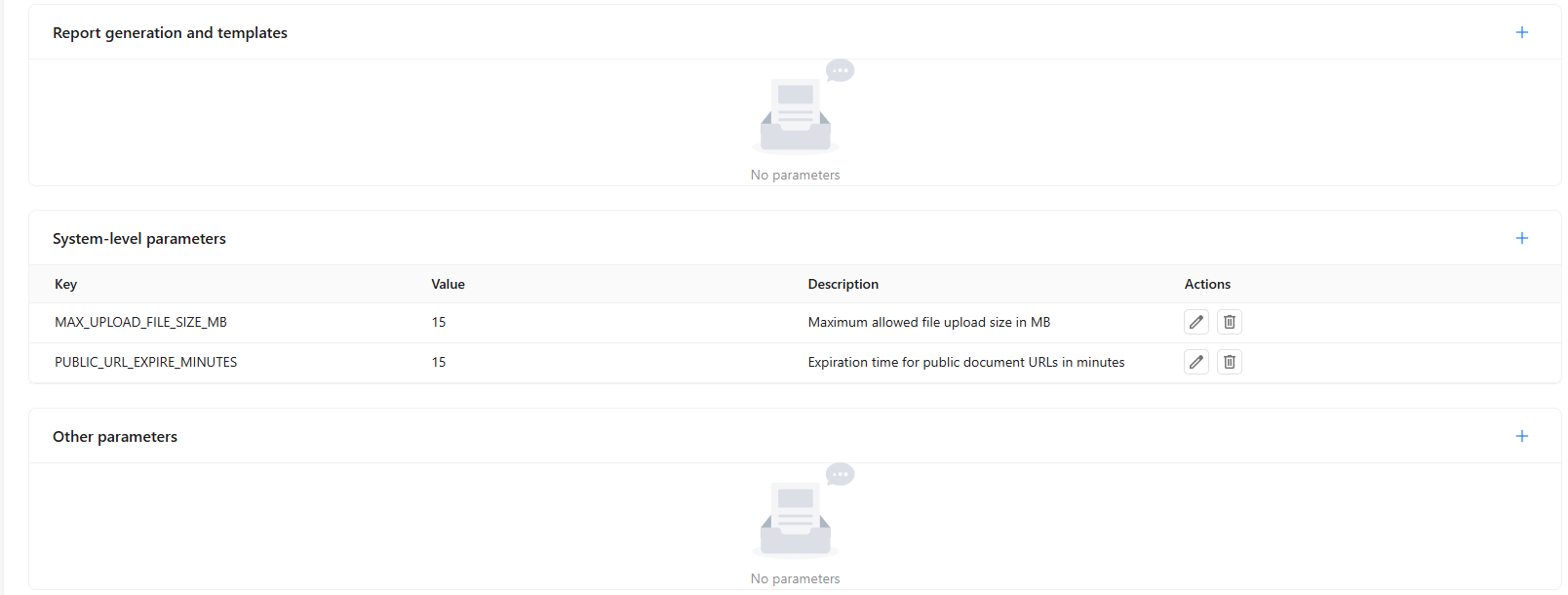
It provides a detailed list of system parameters and allows users to edit or delete them.
To add a new parameter, click the + button at the upper right of the relevant category. Enter the Key, Value, Description, Type, and Encrypted fields, then click Save.
Email Template Tab
It provides a detailed list of email templates and allows users to edit or delete them.
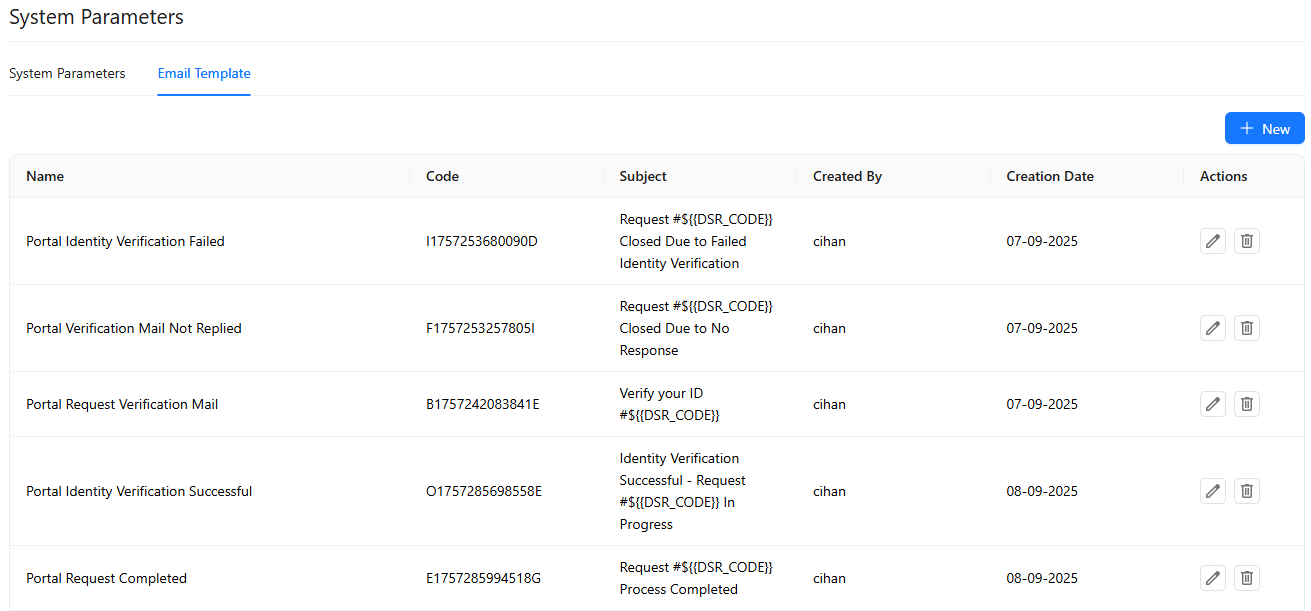
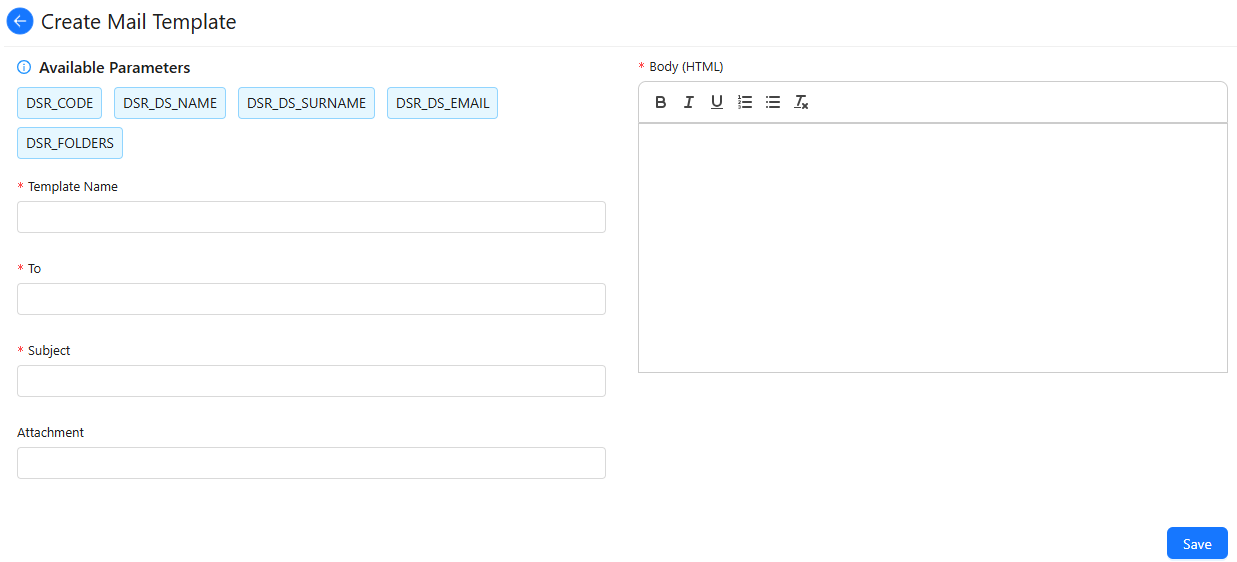
To add a new email template, click the + New button. Enter the Template Name, To, Subject, Attachment, and Body fields, then click Save.