Data Subject Request
The Data Subject Requests menu is the main screen where legal requests from data subjects (such as customers and employees), including access, erasure, and rectification, are created, listed, and processed.
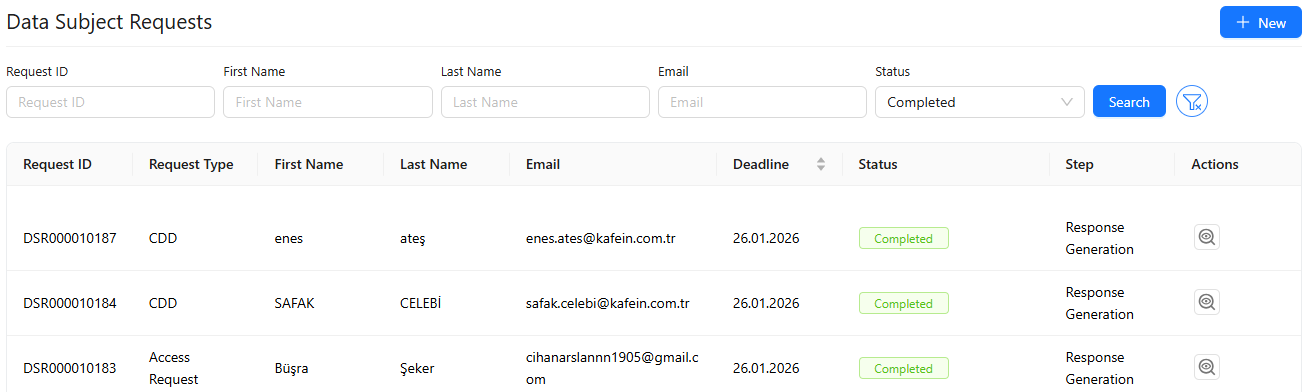
To view the details of a request, click the Actions button on the corresponding request row.
-
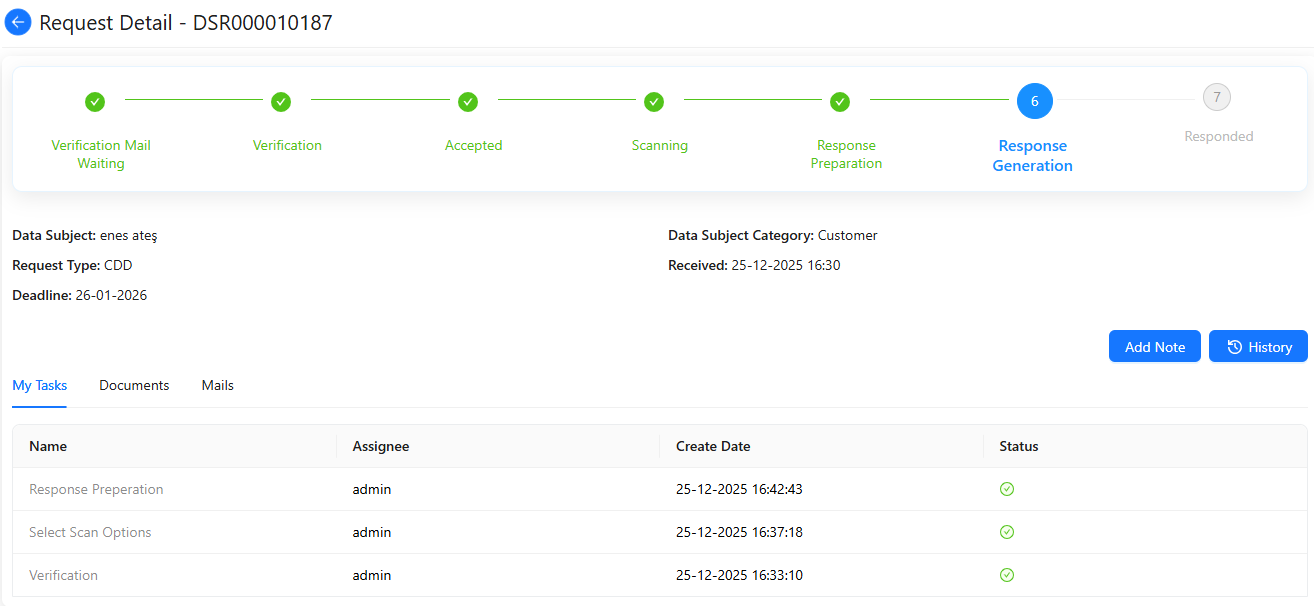
To add a note, click the Add Note button located in the top-right corner, enter your note, and then click Create to save it.
-
To view request history, click History button located in the top-right corner. If needed, you can download the history table in Excel format by clicking the Download button.
-
The My Tasks tab lists all tasks assigned to the user, along with the Assignee, Created Date, and Task Status information.
If the Task Name appears as a clickable link, click it to enter or select the required information for the corresponding task step, and then click Submit Task to save.
- The Documents tab displays the user's files ald folders. To create a new folder, click the New Folder button in the top-right corner. Existing folders can be downloaded by clicking the Download button.
Next to each folder, the ... menu allows you to Create New Folder, Upload File, or Delete the folder.

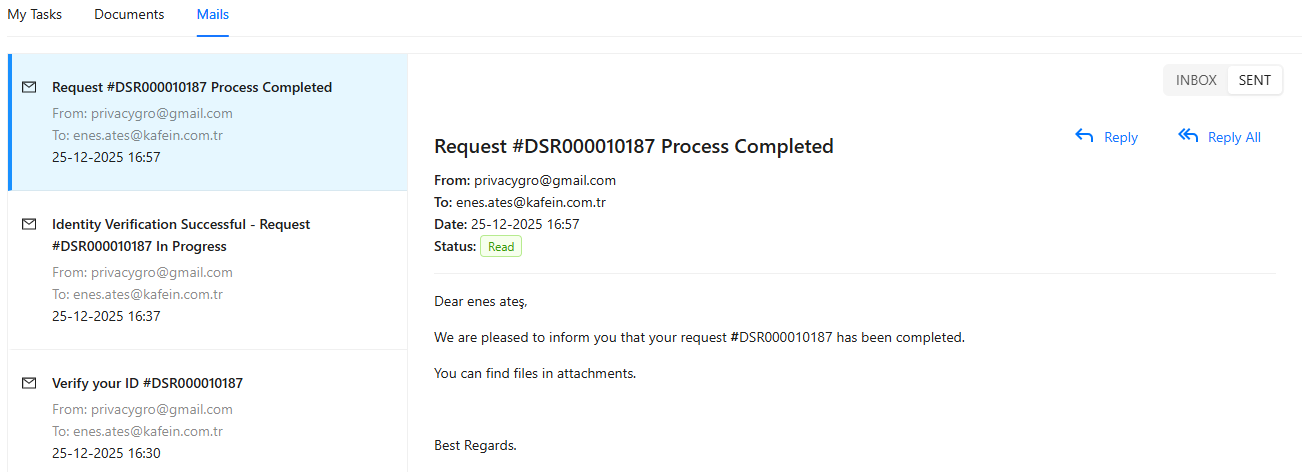
- The Mail tab displays incoming and outgoing emails under the Inbox and Sent categories. Emails can be viewed and replied to directly from this tab.
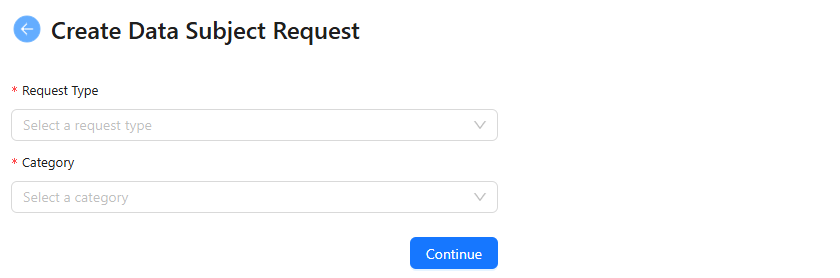
To create a new data subject request, go to the Data Subject Requests page and click + New.
- Select the Request Type and Category, then click Continue.
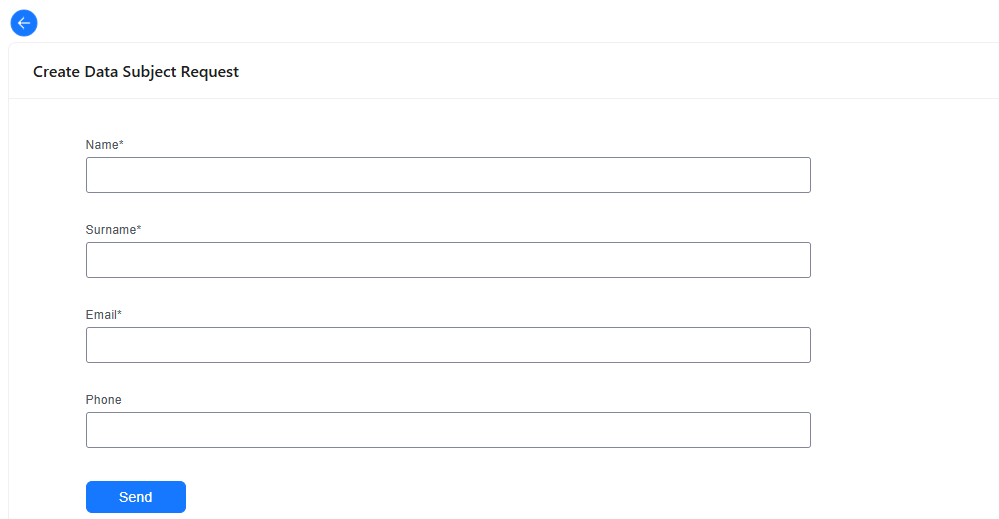
- Enter the Name, Surname, Email, and Phone information, and finally click Send to save the request.